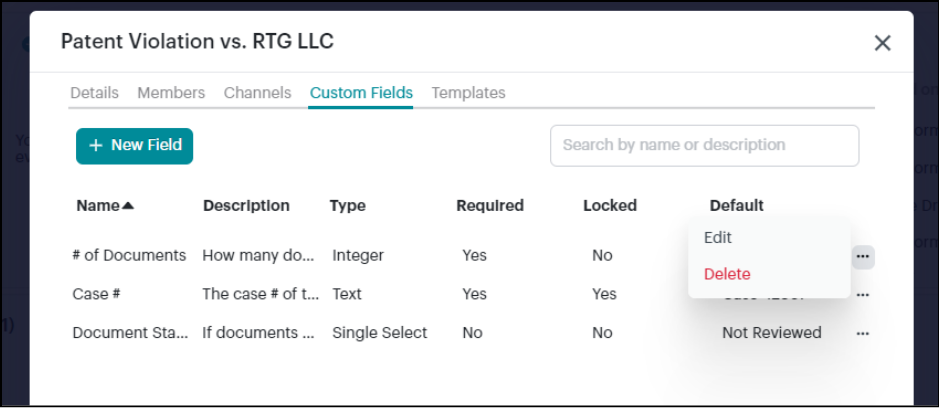
Custom Fields are additional fields in a Task that can be optional or required by Stream Admins. To create a Custom Field:
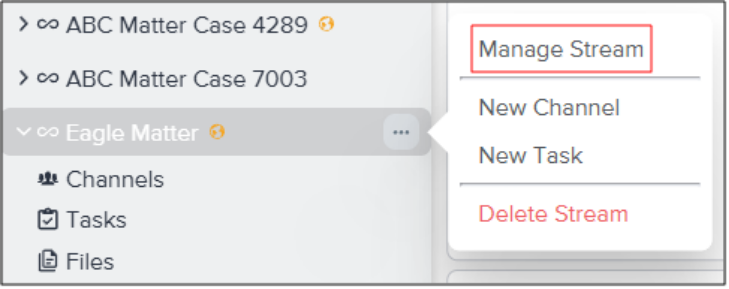
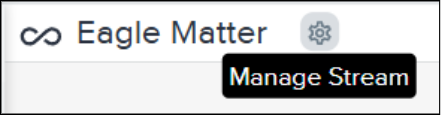
- In the left sidebar, click on the ellipsis to the right of the Stream name and select Manage Stream. Alternatively, open the Stream and click on the Manage Stream cogwheel at the top of the screen.
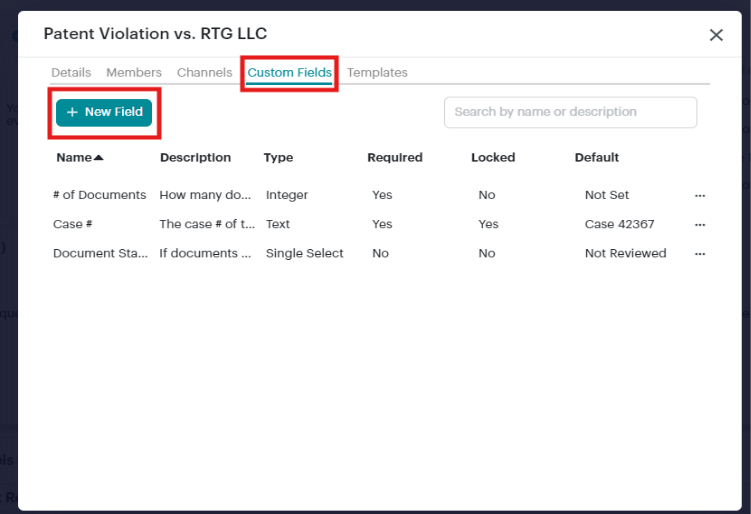
- In the Custom Fields tab, click + New Field.
- In the New Custom Field pop-up, name the Custom Field and, if necessary, add a brief description.
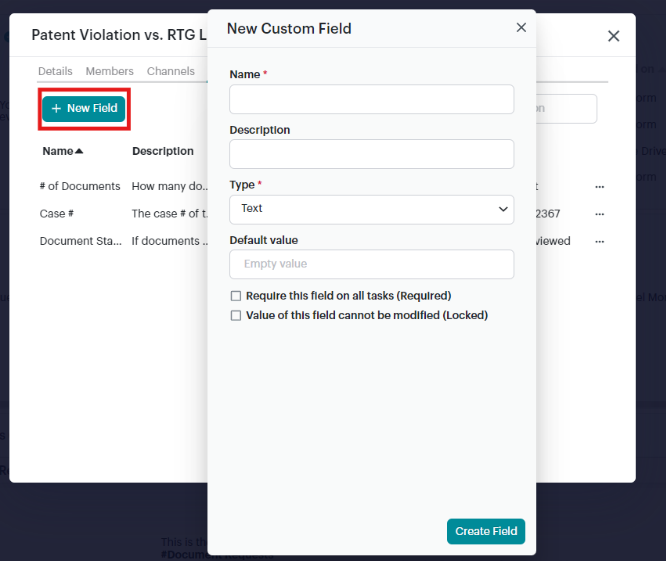
- Click the Type drop-down menu and choose an option:
- Text: A blank-slate input box for letters and numbers.
- Integer Number: A blank-slate input box for whole numbers only.
- Decimal Number: A blank-slate input box capable of containing decimal point numbers.
- Single Select: Multiple choice selection that can contain text and/or number options.
- If necessary, add a default value, which automatically sets the field value of new tasks. You can leave this blank and a value can be added on a per task basis.
- If the field must be filled out for every task in the Stream, check the Required box.
- If the field should be locked, meaning the fields value cannot be changed, check the Locked box. Locked fields must have a default value entered prior to locking the field.
- Click Create Field.
Managing and Editing Custom Fields
Stream Admins can manage Custom Fields from the Manage Stream menu. To edit or delete a Custom Field, click on the ellipsis to the right of the Custom Field and select Edit or Delete. Once a custom field is created, the field type can’t be changed.